
Settings
Configure SMS Settings & Privacy in Netcore CPaaS
Overview
The Settings page in Netcore CPaaS has been updated to include SMS-related configuration. It now includes two major components:
- Principal Entity ID
- User Management
Principal Entity ID (PE ID) configuration
The purpose of PE ID is to register your brand’s identity with the DLT platform by associating a PID (Principal Entity ID) at the Feed level. Follow the steps below to configure PE ID.
- Navigate to the Settings section of the panel.
- Click on Add new. Select your Enterprise Name from the dropdown.
- Choose one or more Feed Names.
- Enter the PID provided after DLT registration.
- Click Add to map the PID with the selected feed(s).
User Management
This section helps you manage who can access and use the SMS features.
Right now, all users have full access to the SMS module because specific roles or restrictions have yet to be added. You can add or update users from the Manage Users page, and they will automatically get access to the SMS section.
Personally Identifiable Information (PII) Hashing
Use Netcore's Personally Identifiable Information (PII) Hashing method to enhance customers' data privacy by hashing mobile numbers before storage or transmission. This setting protects Personally Identifiable Information related to customer mobile numbers.
Hashing Functionality
This feature protects customer privacy by converting mobile numbers into unique hash values when enabled. Hashing replaces the actual number with an irreversible code, keeping data secure while allowing internal operations like matching and de-duplication.
To enable PII Hashing, follow the below steps:
- Log in to your CPaaS SMS portal and navigate to Settings.
- Locate the PII Hashing–Mobile Number option and click enable.
Once enabled, all future SMS interactions will use hashed mobile numbers.
Note
- This feature does not affect message delivery or campaign performance.
- Hashing is irreversible and original mobile numbers cannot be retrieved once hashed.
Message Content Storage
The Message Content Storage feature enhances data privacy by preventing the storage of individual message content. When disabled, user messages are processed and delivered but not retained in system records, ensuring that sensitive information remains secure and inaccessible.
When this feature is disabled, only message metadata, such as delivery status, timestamps, and recipient information, is stored. The actual message text is excluded from storage, reducing the risk of data exposure or misuse.
To disable Message Content Storage, follow the steps below:
- Log in to your CPaaS SMS portal and navigate to Settings.
- Locate the Message Content Storage option and click Disable.
Once disabled, new SMS messages will no longer be stored in the system.
Note
- Disabling this option does not affect SMS delivery or campaign tracking.
- Stored messages prior to disabling remain unaffected.
API Password Management
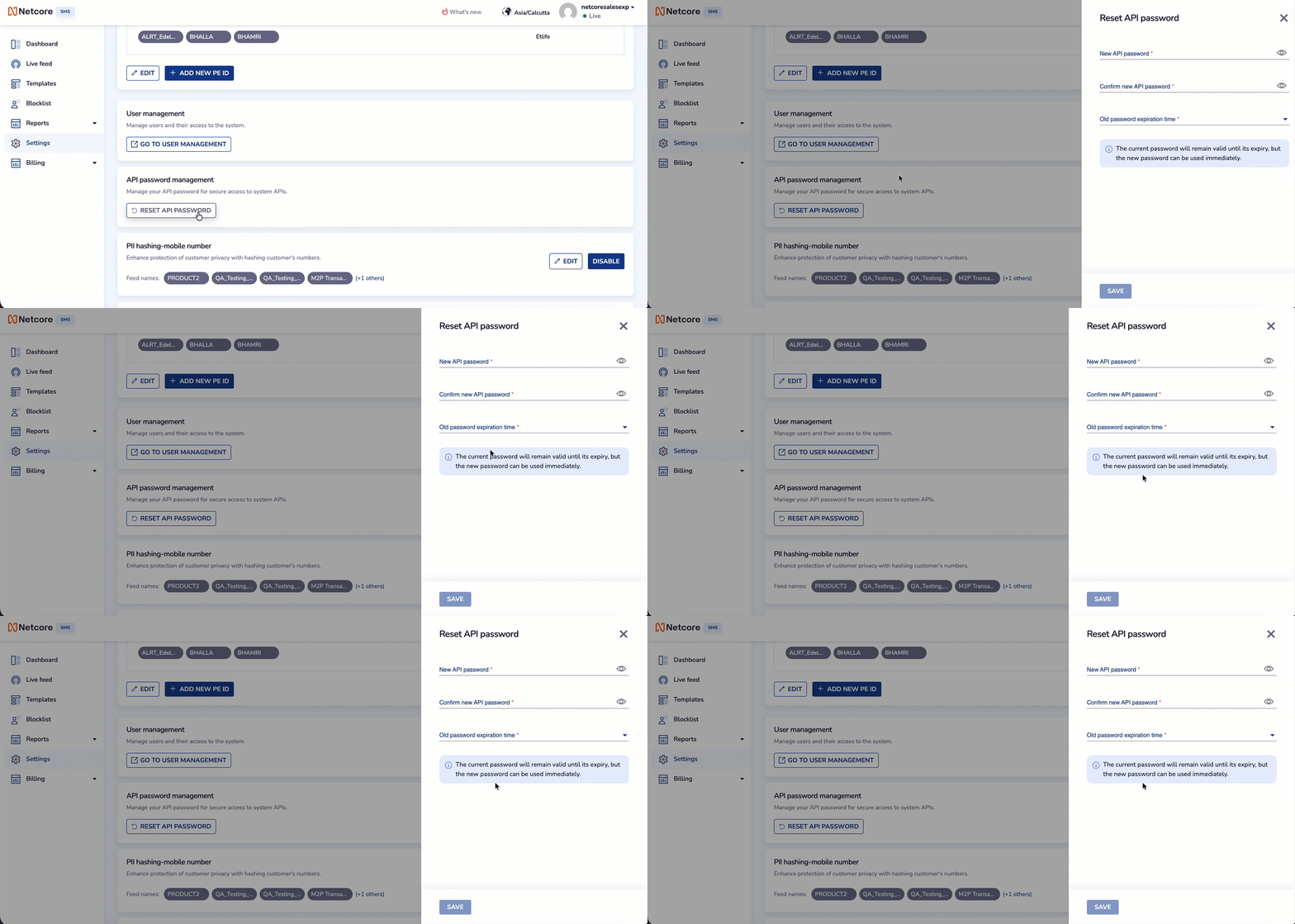
The API Password Reset feature allows you to securely reset the API password used to access Netcore CPaaS APIs. You can create a new API password while optionally allowing the existing password to remain valid until its configured expiration time.
Reset API Password
To reset your API password, follow these steps:
- Log in to your CPaaS SMS portal and navigate to Settings.
- Locate the API password management section.
- Click Reset API Password.
- Enter a new password in the New API password field.
- Re-enter the password in the Confirm new API password field.
- Select the required Old password expiration time.
- Click Save to reset the API password.
API Password Requirements
The new API password must meet the following requirements:
-
Must be between 6 and 16 characters long.
-
Must contain at least one lowercase character.
-
Must contain at least one uppercase character.
-
Must contain at least one number.
-
Must contain at least one special character from the following set:
!@#$%^&*(). -
When resetting the API password, you can configure how long the existing API password remains valid.
The current password will remain valid until its expiry, while the new password can be used immediately. This allows you to transition to the new password without an immediate interruption to existing API integrations.Note- The new API password can be used immediately after the reset is saved.
- The existing API password remains valid until the selected expiration time.
- Ensure that all API integrations are updated with the new password before the old password expires.
- Keep your API password secure and do not share it with unauthorized users.
Link Tracking
Link Tracking lets SMS campaigns use trackable URLs to measure link engagement. When enabled, links in SMS messages are converted into trackable URLs, providing insights such as clicks, device type, browser, operating system, and location.
Configure Link Tracking
Link Tracking is available under Settings in the Netcore CPaaS SMS portal.
The Link Tracking section lets administrators:
- Enable or disable Link Tracking.
- Configure tracking domains for individual feeds.
- Verify domain ownership and DNS configuration.
- Manage existing tracking domains.
Add a Tracking Domain
To configure a tracking domain:
- Log in to the Netcore CPaaS SMS portal and go to Settings.
- In the Link Tracking section, click Add Domain.
- Select the required Enterprise.
- Select the Feed Name to associate with the tracking domain.
- Enter the Tracking Domain.
- Click Verify to verify domain ownership and DNS configuration.
- After successful verification, click Save.
Domain Verification
A tracking domain must be verified before it can be saved. Click Verify after entering the domain. The system checks the domain ownership and DNS configuration.
After successful verification, a confirmation message is displayed.
Manage Tracking Domains
Configured tracking domains are displayed in a table with the following details:
| Field | Description |
|---|---|
| Feed Name | The feed associated with the tracking domain. |
| Tracking Domain | The domain used to generate trackable URLs. |
| Status | Indicates whether Link Tracking is enabled for the domain. |
| Action | Provides available actions for the configured domain. |
Filter Configured Domains
Use the filters at the top of the Link Tracking section to find configured domains. The list can be filtered by:
- Enterprise Name
- Feed Name
- Domain
Enable or Disable Link Tracking
Use the Link Tracking toggle to enable or disable Link Tracking.
Each configured domain also has a status toggle, allowing Link Tracking to be enabled or disabled for the associated feed.
Tracking Insights
Once Link Tracking is configured and used in SMS messages, engagement data can include:
- Link clicks
- Device type
- Browser
- Operating system
- Location
Note: Contact Netcore Support for assistance with domain verification, DNS configuration, or Link Tracking setup.
Multilingual Feature
The Multilingual Feature enables multilingual support for SMS campaigns, allowing messages to be configured for multiple languages across selected enterprises and feeds.

Edit or Disable Multilingual Feature
Updated 1 day ago