
Password Protection for Reports
Learn to set up Password Protection for your CPaaS reports in this document.
Overview
Netcore CPaaS dashboard now has Password Protection for Reports as part of our ongoing CPaaS Security Enhancements. This feature ensures that all downloaded and scheduled reports are encrypted with a user-defined file password, adding an extra layer of security to your data.
Once this feature is active on your account, any report downloaded from the CPaaS dashboard will be encrypted. The recipient must enter the configured file password to open the report.
Key BenefitYour report files are protected even if shared or forwarded. Only users who know the file password can view the contents.
Scope of Impact
Password protection applies to report downloads and scheduled reports across the following channels and areas:
| Channel | Impacted Report Areas |
|---|---|
| Live Feed (Download / Schedule), Manage Reports: Schedule & Edit, Billing Report Download, Blocklist Download | |
| RCS | Live Feed (Download / Schedule), Manage Reports: Schedule & Edit, Billing Report Download, Blocklist Download |
| SMS | Live Feed (Download / Schedule), Manage Reports: Schedule & Edit, Billing Report Download, Blocklist Download |
| Scheduled Report Downloads (as applicable) |
Workflow
When a user attempts to download or schedule a report, the following flow applies:
| Step | Action |
|---|---|
| 1. Download Triggered | User clicks Download Report or schedules a report from any impacted area. |
| 2. Password Check | The system checks whether a file password has been configured for the account. |
| 3A. Password Already Set | The report is immediately encrypted with the configured password and downloaded. |
| 3B. Password Not Set | The user is redirected to the Password Setup flow before the download proceeds. |
Set up Password Protection
Follow the steps given below to set up password protection for reports.
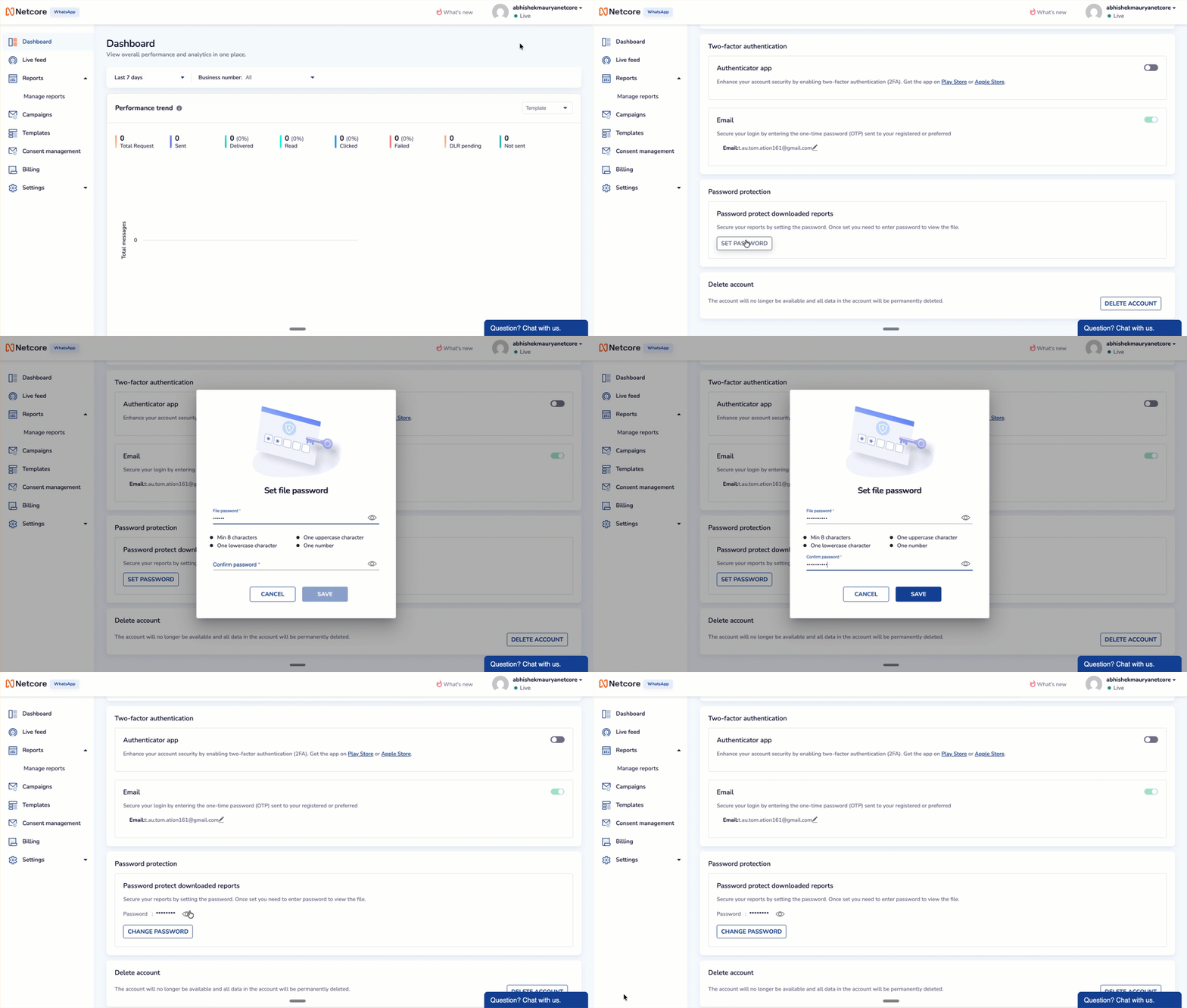
Set up Password Protection
- Navigate your Netcore CPaaS Dashboard.
- Click on your username on top right corner and click Profile.
- Scroll to the Password Protection section.
- Toggle on "Password protect downloaded reports", then click Change Password.
- A 2-Step Verification pop-up will appear. An OTP (verification code) will be automatically sent to your registered email address.
- Enter the code in the fields provided and click Verify.
- Once verified, the Set File Password dialog appears.
- Enter your new password in the File Password field.
- Re-enter it in the Confirm Password field and click Save. ✅ Done!
A confirmation message,_"File password has been set successfully" will appear. All future report downloads will now be encrypted with this password.
Once set, the Password Protection section will display:
- The masked password (shown as asterisks)
- A Show Password button to reveal it on demand
- A Change Password button to update it
- A toggle to enable or disable the feature
NoteThis password is separate from your platform login. Keep it safe as you'll need it every time you open a downloaded report.
Change the File Password
Users can update their file password at any time from the Password Protection section in Settings.
- Click Change Password on the settings page.
- A new 2FA OTP will be sent to your registered email address.
- Enter the OTP and click Verify.
- Set and confirm the new file password, then click Save.
ImportantChanging the password applies only to future report downloads. Previously downloaded files will retain the password that was active at the time of download.
For Specific CustomersIf your organisation does not wish to use this feature, it can be kept disabled upon request. Please reach out to your Netcore account manager or support team to discuss your preference.
Edit Reports
If you want to create a new report or edit a scheduled report, you will again be prompted to create a new password for exports.
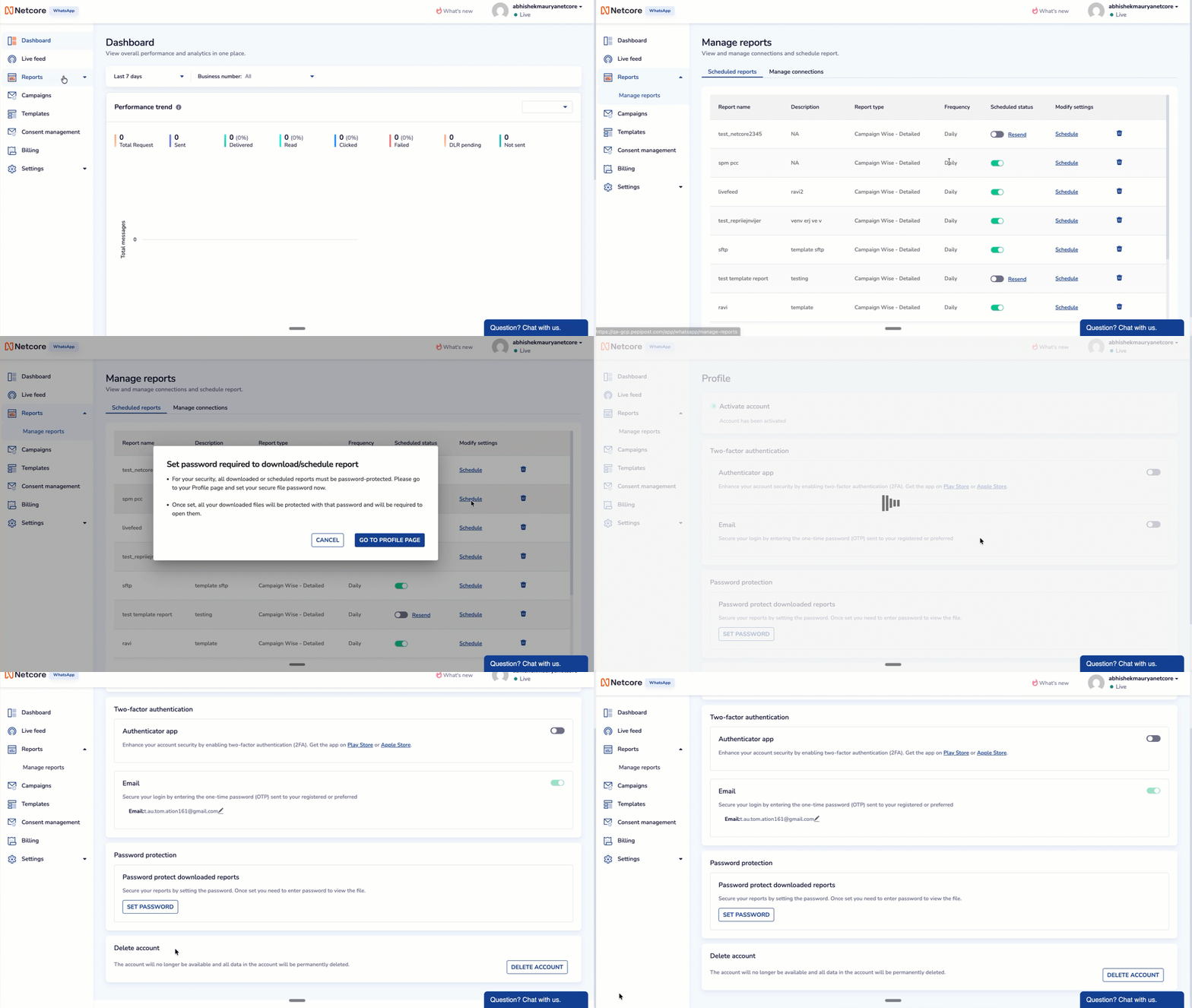
Password Protection to Edit Reports
Frequently Asked Questions (FAQs)
Q: Will old downloaded reports be affected?
A. No. Previously downloaded report files will remain unchanged. Only new downloads after the password is set will be encrypted.
Q: Is the file password the same as my login password?
A. No. The file password is a separate password used exclusively to encrypt downloaded report files. It does not affect your platform login credentials.
Q: Which file formats are encrypted?
A. All report files downloaded from the impacted areas listed in Section 2 will be password-encrypted, regardless of file format (CSV, XLSX, etc.).
Updated about 2 months ago